Creating an Extension
While Flet controls leverage many built-in Flutter widgets to enable the creation of complex applications, not all Flutter widgets or third-party packages can be directly supported by the Flet team or included in the core Flet framework. At the same time, the Flutter ecosystem is vast and offers developers a wide range of possibilities to extend functionality beyond the core.
To address this, the Flet framework provides an extensibility mechanism. This allows you to incorporate widgets and APIs from your own custom Flutter packages or third-party libraries directly into your Flet application.
In this guide, you will learn how to create Flet extension from template and then customize it to integrate 3rd-party Flutter package into your Flet app.
Prerequisites
To integrate custom Flutter package into Flet you need to have basic understanding of how to create Flutter apps and packages in Dart language and have Flutter development environment configured. See Flutter Getting Started for more information about Flutter and Dart.
Create Flet extension from template
Flet now makes it easy to create and build projects with your custom controls based on Flutter widgets or Flutter 3rd-party packages. In the example below, we will be creating a custom Flet extension based on the flutter_spinkit package.
Step 1. Create new virtual environment and install Flet there.
Step 2. Create new extension project from template.
flet create --template extension --project-name flet-spinkit
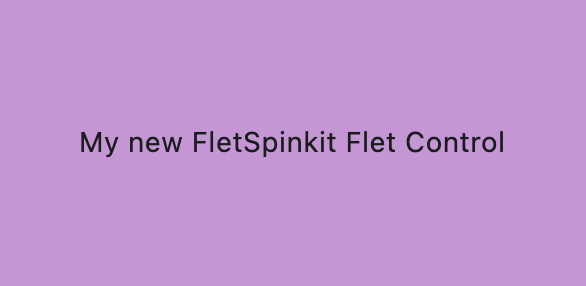
A project with new FletSpinkit control will be created. The control is just a Flutter Text widget with text property, which we will customize later.
Step 3. Build example app.
Flet project created from extension template has examples/flet_spinkit_example folder with the example app.
When in the folder where your pyproject.toml for the app is (examples/flet_spinkit_example), run flet build command, for example, for macos:
flet build macos -v
Open the app and see the new custom Flet Control:
open build/macos/flet-spinkit-example.app
Change Python files
Once the project was built for desktop once, you can make changes to your python files and run it without rebuilding.
First, if you are not using uv, install dependencies from pyproject.toml:
pip install .
or
poetry install
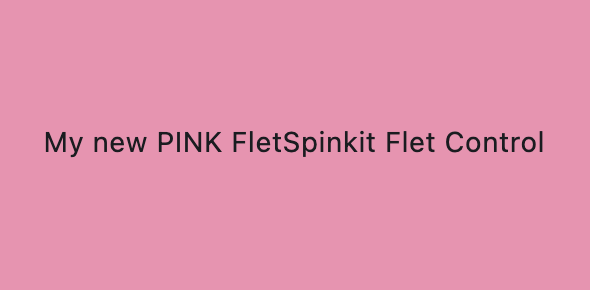
Now you can make changes to your example app main.py:
import flet as ft

from flet_spinkit import FletSpinkit

def main(page: ft.Page):
    page.vertical_alignment = ft.MainAxisAlignment.CENTER
    page.horizontal_alignment = ft.CrossAxisAlignment.CENTER

    page.add(
        ft.Container(
            height=150,
            width=300,
            alignment=ft.Alignment.CENTER,
            bgcolor=ft.Colors.PINK_200,
            content=FletSpinkit(
                tooltip="My new PINK FletSpinkit Control tooltip",
                value="My new PINK FletSpinkit Flet Control",
            ),
        ),
    )

ft.run(main)
and run:
flet run
Change Flutter package
When you make any changes to your flutter package, you need to rebuild:
flet build macos -v
If you need to debug, run this command:
build/macos/flet-spinkit-example.app/Contents/MacOS/flet-spinkit-example --debug
Integrate 3rd-party Flutter package
Let's integrate flutter_spinkit package into our Flet app.
Step 1. Add dependency
Go to src/flutter/flet_spinkit folder and run this command to add dependency to flutter_spinkit to pubspec.yaml:
flutter pub add flutter_spinkit
Read more information about using Flutter packages here.
Step 2. Modify dart file
In the src/flutter/flet_spinkit/lib/src/flet_spinkit.dart file, add import statement and replace Text widget with SpinKitRotatingCircle widget:
import 'package:flet/flet.dart';
import 'package:flutter/material.dart';
import 'package:flutter_spinkit/flutter_spinkit.dart';

class FletSpinkitControl extends StatelessWidget {
  final Control control;

  const FletSpinkitControl({
    super.key,
    required this.control,
  });

  @override
  Widget build(BuildContext context) {
    Widget myControl = SpinKitRotatingCircle(color: Colors.red, size: 100.0);

    return LayoutControl(control: control, child: myControl);
  }
}
Step 3. Rebuild example app
Go to examples/flet_spinkit_example, clear cache and rebuild your app:
flet build macos -v
Step 4. Run your app

Flet extension structure
After creating new Flet project from extension template, you will see the following folder structure:
├── LICENSE
├── mkdocs.yml
├── README.md
├── docs
│   └── index.md
│   └── FletSpinkit.md
├── examples
│   └── flet_spinkit_example
│       ├── README.md
│       ├── pyproject.toml
│       └── src
│           └── main.py
├── pyproject.toml
└── src
    ├── flet_spinkit
    │   ├── __init__.py
    │   └── flet_spinkit.py
    └── flutter
        └── flet_spinkit
            ├── CHANGELOG.md
            ├── LICENSE
            ├── README.md
            ├── lib
            │   ├── flet_spinkit.dart
            │   └── src
            │       ├── create_control.dart
            │       └── flet_spinkit.dart
            └── pubspec.yaml
Flet extension consists of:
- package, located in
srcfolder - example app, located in
examples/flet-spinkit_examplefolder - docs, located in
docsfolder
Package
Package is the component that will be used in your app. It consists of two parts: Python and Flutter.
Python
flet_spinkit.py
Defines the Python-side Flet control. FletSpinkit is registered with @ft.control("flet_spinkit") and inherits from ft.LayoutControl, which ties it to the Flutter Control.type handled in the extension. The class currently includes a value: str property and a placeholder docstring.
Flutter
pubspec.yaml
Flutter package manifest for the extension. Declares SDK constraints and dependencies. Notable deps:
fletfor Flet extension APIsflutter_spinkitfor the spinner widgets used by the control
flet_spinkit.dart
Library entrypoint. Exports the public Extension class from extension.dart.
src/extension.dart
Registers the extension with Flet. Extension.createWidget maps Control.type to the Flutter widget; currently maps "flet_spinkit" to FletSpinkitControl.
src/flet_spinkit.dart
Flutter wrapper widget for the control. FletSpinkitControl builds a SpinKitRotatingCircle and wraps it with LayoutControl so layout/state from the Python control are applied.
Example app
src/main.py
Python program that uses Flet Python control.
pyproject.toml
Here you specify dependency to your package, which can be:
- Path dependency
Absolute path to your Flet extension folder, for example:
dependencies = [
  "flet-spinkit @ file:///Users/user-name/projects/flet-spinkit",
  "flet>=0.80.2",
]
- Git dependency
Link to git repository, for example:
dependencies = [
  "flet-ads @ git+https://github.com/flet-dev/flet-ads.git",
  "flet>=0.80.2",
]
- PyPi dependency
Name of the package published on pypi.org, for example:
dependencies = [
  "flet-ads",
  "flet>=0.80.2",
]
Docs
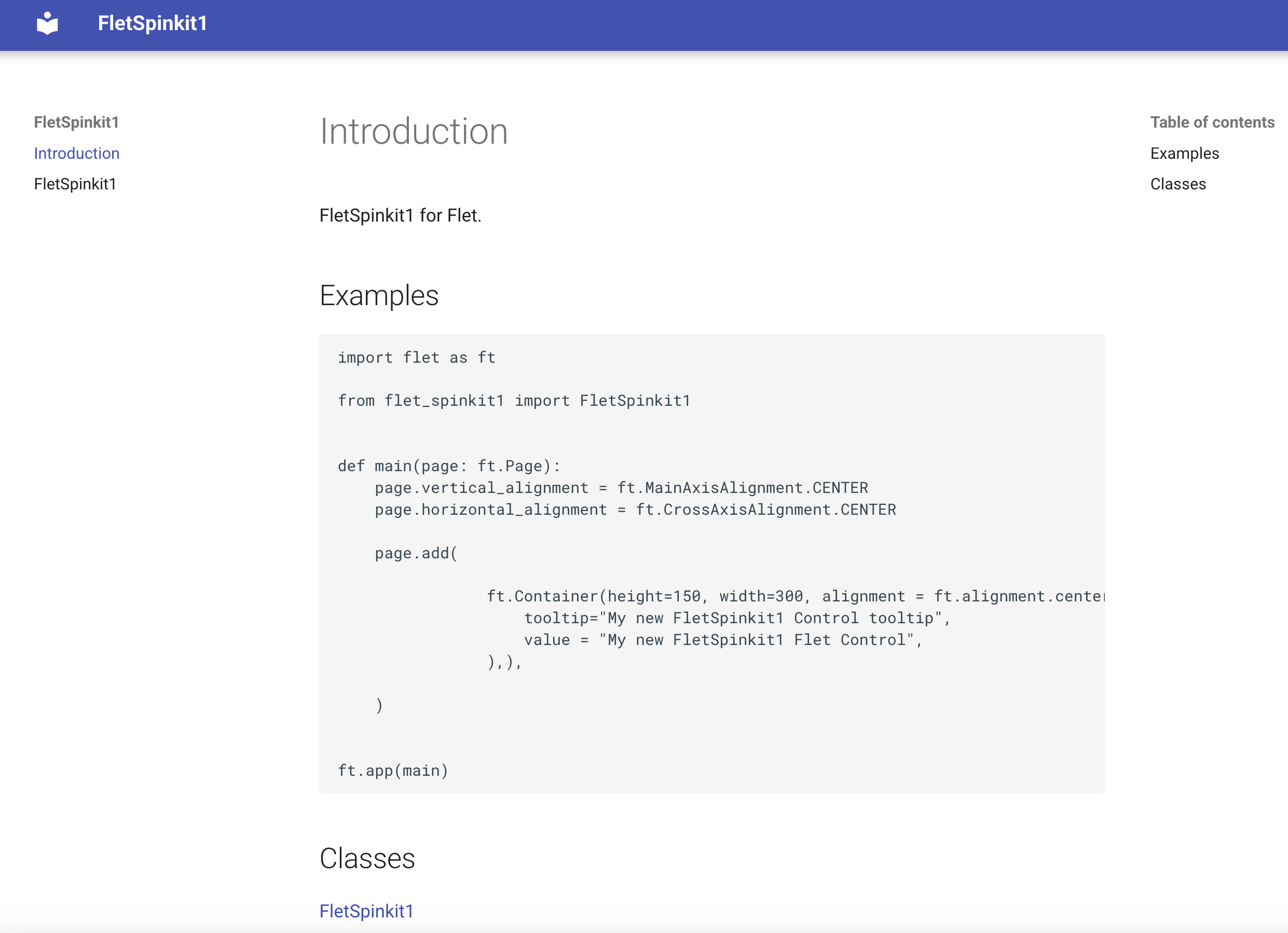
If you are planning to share your extension with community, you can easily generate documentation from your source code using mkdocs.
Flet extension comes with a docs folder containing initial files for your documentation and a mkdocs.yml file at the project root.
From the folder that contains mkdocs.yml, run the following command to see how your docs look locally:
mkdocs serve
Open http://127.0.0.1:8000 in your browser:
Once your documentation is ready, if your package is hosted on GitHub, your can run the following command to host your documentation on GitHub pages:
mkdocs gh-deploy
You may find this guide helpful to get started with mkdocs.
Customize properties
In the example above, Spinkit control creates a hardcoded Flutter widget. Now let's customize its properties.
Common properties
Generally, there are three types of controls in Flet:
-
Visual controls that are added to the app/page surface, such as FletSpinkit.
-
Dialog and other popup controls (dialogs, pickers, panels, etc.) that are opened from the page (for example,
page.open(dlg)). -
Services (Clipboard, Battery, Video, Audio, etc.) that are created as standalone instances and automatically registered with the page.
When creating a visual control that should participate in layout (size, position, transforms, margin, etc.), define a dataclass-based control annotated with @ft.control("control_name") and inherit from LayoutControl. In its Dart counterpart (src/flet_spinkit.dart), wrap your Flutter widget with LayoutControl(...).
When creating a dialog or other popup control (opened with page.open(...)), define a dataclass-based control annotated with @ft.control("control_name") and inherit from DialogControl. In its Dart counterpart, show the dialog/popup (for example, showDialog or showModalBottomSheet) and return a placeholder widget like SizedBox.shrink() instead of wrapping with LayoutControl(...) or BaseControl(...).
When creating a service control (Clipboard, Battery, Video, Audio, etc.), define a dataclass-based control annotated with @ft.control("control_name") and inherit from Service. In its Dart counterpart, implement FletService and register it via FletExtension.createService (no widget wrapper).
You can use all LayoutControl, DialogControl, and Service properties inherited by your dataclass-based control without re-declaring them as fields (unless you want to override defaults or metadata).
If you have created your extension project from Flet extension template, your Python Control is already inherited from LayoutControl and you can use its properties in your example app:
import flet as ft

from flet_spinkit import FletSpinkit

def main(page: ft.Page):
    page.vertical_alignment = ft.MainAxisAlignment.CENTER
    page.horizontal_alignment = ft.CrossAxisAlignment.CENTER

    page.add(
        ft.Stack(
            [
                ft.Container(height=200, width=200, bgcolor=ft.Colors.BLUE_100),
                FletSpinkit(opacity=0.5, tooltip="Spinkit tooltip", top=0, left=0),
            ]
        )
    )

ft.run(main)

Control-specific properties
Now that you have taken full advantage of the properties Flet LayoutControl offer, let's define the properties that are specific to the new Control you are building.
In the FletSpinkit example, let's define its color and size.
In Python class, define new color and size properties:
from typing import Optional

import flet as ft

@ft.control("flet_spinkit")
class FletSpinkit(ft.LayoutControl):
    """
    FletSpinkit Control description.
    """

    color: Optional[ft.ColorValue] = None
    size: float = 100.00
In src/flet_spinkit.dart file, use helper methods getColor and getDouble to access color and size values:
import 'package:flet/flet.dart';
import 'package:flutter/material.dart';
import 'package:flutter_spinkit/flutter_spinkit.dart';

class FletSpinkitControl extends StatelessWidget {
  final Control control;

  const FletSpinkitControl({
    super.key,
    required this.control,
  });

  @override
  Widget build(BuildContext context) {
    Widget myControl = SpinKitRotatingCircle(
      color: control.getColor("color", context),
      size: control.getDouble("size") ?? 100.0,
    );

    return LayoutControl(control: control, child: myControl);
  }
}
Use color and size properties in your app:
import flet as ft

from flet_spinkit import FletSpinkit

def main(page: ft.Page):
    page.vertical_alignment = ft.MainAxisAlignment.CENTER
    page.horizontal_alignment = ft.CrossAxisAlignment.CENTER

    page.add(
        ft.Stack(
            controls=[
                ft.Container(height=200, width=200, bgcolor=ft.Colors.BLUE_100),
                FletSpinkit(
                    color=ft.Colors.YELLOW,
                    size=150,
                    opacity=0.5,
                    tooltip="Spinkit tooltip",
                    top=0,
                    left=0,
                ),
            ]
        )
    )

ft.run(main)
Rebuild and run:

Properties with default values on the Python side are not sent to Flutter when the user hasn't changed them from the default. This means your Dart code must provide the same default value for every property that has one in Python.
For example, if your Python control declares:
size: float = 100.0
animate: bool = True
Then your Dart code must use matching defaults:
// Correct - defaults match Python
final size = control.getDouble("size", 100.0)!;
final animate = control.getBool("animate", true)!;

// Wrong - no default, will be null when user doesn't set the property
final size = control.getDouble("size");      // returns null!
final animate = control.getBool("animate");  // returns null!
This also applies to @ft.value types parsed with helper functions. If a value type field has a default, the corresponding parseDouble(), parseBool(), parseDuration(), etc. call on the Dart side must provide the same default.
Common pitfalls:
- Missing defaults:
control.getDouble("prop")instead ofcontrol.getDouble("prop", 0.0)! - Mismatched defaults: Python has
Truebut Dart defaults tofalse - Unit mismatches: Python uses
Duration(milliseconds=150)but Dart usesDuration(microseconds: 150) - Empty collections:
field(default_factory=list)means an empty list won't be sent; Dart must handle null with?? const []
You can find source code for this example here.
Dedicated data channels
Property updates and method calls between Python and Dart go over Flet's MsgPack-framed control protocol. That works well for widget state and small events but caps at ~1 GB/s with several allocations per frame. For widgets that need to move bulk binary data — image frames, audio buffers, file blobs, ML inference tensors — Flet provides dedicated DataChannels that bypass MsgPack entirely and reach memory-bandwidth-class throughput on every supported platform.
Examples of widgets that benefit:
- A chart receiving a stream of bitmaps from Python (1080p RGBA at 60 fps ≈ 480 MB/s — far above what the control protocol can sustain)
- A camera widget pushing frames Dart → Python for ML inference
- A microphone widget streaming PCM samples to a Python DSP pipeline
For sub-KB widget state, you don't need this — the regular property protocol is faster end-to-end at that size. Reach for DataChannel when payloads start at a few KB and especially when they stream at high rates.
How it works
Allocation lives on the Dart side: the widget calls FletBackend.of(context).openDataChannel() in initState, then fires a control event named data_channel_open carrying {channel_name, channel_id}. The Python side declares an on_data_channel_open handler, retrieves the matching channel via Control.get_data_channel(channel_id), and starts sending/receiving bytes.
Transport is chosen per deployment mode automatically — dedicated PythonBridge per channel in embedded native (flet build for desktop/mobile), raw-byte frames muxed over postMessage with Transferable ArrayBuffer in Pyodide, muxed over the protocol socket in flet run dev mode, muxed over WebSocket with a Python server. Widget code is identical across all modes.
Python-side API
from typing import Callable, Optional

import flet as ft


@ft.control("MyImageChart")
class MyImageChart(ft.LayoutControl):
    on_data_channel_open: Optional[ft.EventHandler[ft.DataChannelOpenEvent]] = None

    def init(self) -> None:
        # `init` is the @ft.control post-construct hook (runs before `did_mount`).
        # Wire up the channel-capture handler here.
        self._frames: Optional[ft.DataChannel] = None
        if self.on_data_channel_open is None:
            self.on_data_channel_open = self._capture_channel

    def _capture_channel(self, e: ft.DataChannelOpenEvent) -> None:
        # `e.channel_name` is the label the Dart side put in the event
        # payload — dispatch on it when a widget opens multiple channels.
        # Single-channel widgets can ignore it.
        self._frames = self.get_data_channel(e.channel_id)
        # Optional: subscribe to bytes flowing Dart → Python.
        self._frames.on_bytes(self._on_frame_from_dart)

    def push_frame(self, rgba_bytes: bytes) -> None:
        """Python → Dart — fire-and-forget byte send."""
        if self._frames is not None:
            self._frames.send(rgba_bytes)

    def _on_frame_from_dart(self, payload: bytes) -> None:
        # Called from the transport's delivery thread (under the GIL in
        # embedded native mode). Push to a `queue.Queue` and let a worker
        # drain — don't do heavy CPU work here, it'll starve the transport.
        ...
ft.DataChannel is an abstract class — instances come back from Control.get_data_channel(channel_id). Its surface:
send(payload: bytes)— Python → Dart, fire-and-forgeton_bytes(callback: Callable[[bytes], None] | None)— register a handler for bytes pushed from Dart; passNoneto clearclose()— release the channel (idempotent; the framework auto-closes on control unmount, you rarely need to call it explicitly)
The ft.DataChannelOpenEvent fields are channel_name: str and channel_id: int. The field is channel_name, not name, because name is reserved on the base Event class for the event's own name ("data_channel_open").
Dart-side API
import 'package:flet/flet.dart';

class MyImageChartState extends State<MyImageChartWidget> {
  late final DataChannel _frames;
  StreamSubscription<Uint8List>? _sub;

  @override
  void didChangeDependencies() {
    super.didChangeDependencies();
    if (_sub != null) return;  // initialise lazily, once
    _frames = FletBackend.of(context).openDataChannel();
    _sub = _frames.messages.listen(_onFrameFromPython);
    // Tell Python about the channel via a regular control event.
    widget.control.triggerEvent("data_channel_open", {
      "channel_name": "frames",
      "channel_id": _frames.id,
    });
  }

  void _onFrameFromPython(Uint8List bytes) {
    // hand to a Texture, dart:ui.Image.fromPixels, etc.
  }

  void _pushFrameToPython(Uint8List bytes) {
    _frames.send(bytes);
  }

  @override
  void dispose() {
    _sub?.cancel();
    _frames.close();
    super.dispose();
  }
}
DataChannel Dart-side surface:
int get id— the channel identifier that goes into thedata_channel_openevent payloadStream<Uint8List> get messages— bytes pushed from Pythonbool send(Uint8List bytes)— Dart → Python, fire-and-forgetvoid close()— release the channel (idempotent)
Allocate the channel in didChangeDependencies, not initState — FletBackend.of(context) needs an active BuildContext and that's the first lifecycle hook where it's safely available.
Neither side imports serious_python or dart_bridge. The DataChannel API surface lives entirely in package:flet / flet, so your extension's dependencies stay the same.
Multiple channels per widget
A control can open as many channels as it needs — each openDataChannel() call mints a unique id. Disambiguate them by channel_name in the event:
// Dart — open two channels, label each
_frames = FletBackend.of(context).openDataChannel();
_audio  = FletBackend.of(context).openDataChannel();
widget.control.triggerEvent("data_channel_open", {
  "channel_name": "frames",
  "channel_id": _frames.id,
});
widget.control.triggerEvent("data_channel_open", {
  "channel_name": "audio",
  "channel_id": _audio.id,
});
# Python — dispatch on channel_name
def _on_data_channel_open(self, e: ft.DataChannelOpenEvent) -> None:
    match e.channel_name:
        case "frames":
            self._frames = self.get_data_channel(e.channel_id)
        case "audio":
            self._audio = self.get_data_channel(e.channel_id)
Threading + backpressure
The on_bytes handler runs synchronously under the GIL on whatever OS thread the transport delivered from. For anything CPU-heavy (PNG decode, ML inference) push the payload onto a queue.Queue or asyncio.Queue and let a worker drain — blocking the delivery thread will starve the transport.
The receiving side's queue is unbounded by default. If a producer outpaces the consumer (camera frames into a slow decoder, matplotlib rotation into Flutter paint), memory grows. For media-streaming widgets, implement backpressure or a drop-old policy on the producer side. A reference example is MatplotlibChartCanvas — it uses a 1-byte ack frame from Dart so the producer waits per-frame, mirroring matplotlib WebAgg's waiting flag pattern.
See also
- First-party reference widget:
MatplotlibChartCanvas— a complete migration from_invoke_methodPNG dispatch to a 1-byte-opcode data channel, including backpressure ack and the GPU / CPU rendering strategies. Python · Dart - Full design / performance notes (wire format, cross-mode operation, concurrency model, empirical numbers):
dedicated-data-channels.mdinflet-dev/serious-python. - Wire-format protocol upgrade for anyone implementing a custom Flet backend or sidecar: Flet protocol framing upgraded for DataChannel support.
Examples
Flet has controls that are implemented as built-in extensions and could serve as a starting point for your own controls.